

Use AI for graphic design to create a visual candidate, then assemble the copy and artwork in an editable layout. For a first project, make a webinar card: one message, one illustration and enough space to read both at the intended size.
Start with a layout job
For a fictional webinar card, define a 1200×628 placement, a headline area on the left, one abstract source-review symbol on the right, a charcoal and orange palette, and no text inside the generated image. The prompt can create a direction; your layout system supplies real text, logo, spacing and components.
Create a wide visual concept for a source-review webinar card. Keep low-detail empty space on the left for supplied text. Place one abstract document-and-check symbol on the right. Use charcoal and warm orange. No words, logos, UI screens or extra symbols.Select the version that leaves the intended copy space clear. Reject the version with invented text, crowded focal points or a metaphor that needs explanation. In the final design file, add the actual type, contrast checks and approved mark manually.
Build the card from a complete brief
Use the following fictional workshop. It needs an announcement card, not a registration form or a new logo.
HEADLINE: Check the source. Keep the meaning.
SUBTITLE: Turn notes into a clear brief.
LABEL: Practical workshop
FINAL SIZE: 1200 x 628 px
ILLUSTRATION: One document-and-check symbol
COLORS: Charcoal background, white text, warm orange artwork
NOT SUPPLIED: Event date, speaker name or registration link
Keep the missing event details out of this practice card. For a real event, get those details before publishing; asking a generator to fill the space could introduce a made-up date.
Generate the artwork using the prompt above. Adobe’s text-to-image instructions provide one way to create this visual. You can use another image generator for the same brief; the layout steps do not depend on a particular provider.
In your design editor, create a frame at the final size and place the chosen image. Add the headline, subtitle and label as separate text layers. Start with 64 px outer margins, a headline around 56 px and a subtitle around 28 px. These are exercise settings; adjust the line breaks and size to the font you actually use.
Put the headline in the left part of the frame and keep the illustration in the right third. Avoid shrinking the text just to fit a large illustration. If the image includes too much empty background, crop or reposition it while keeping the whole symbol visible.
Compare a crowded version with the repaired layout
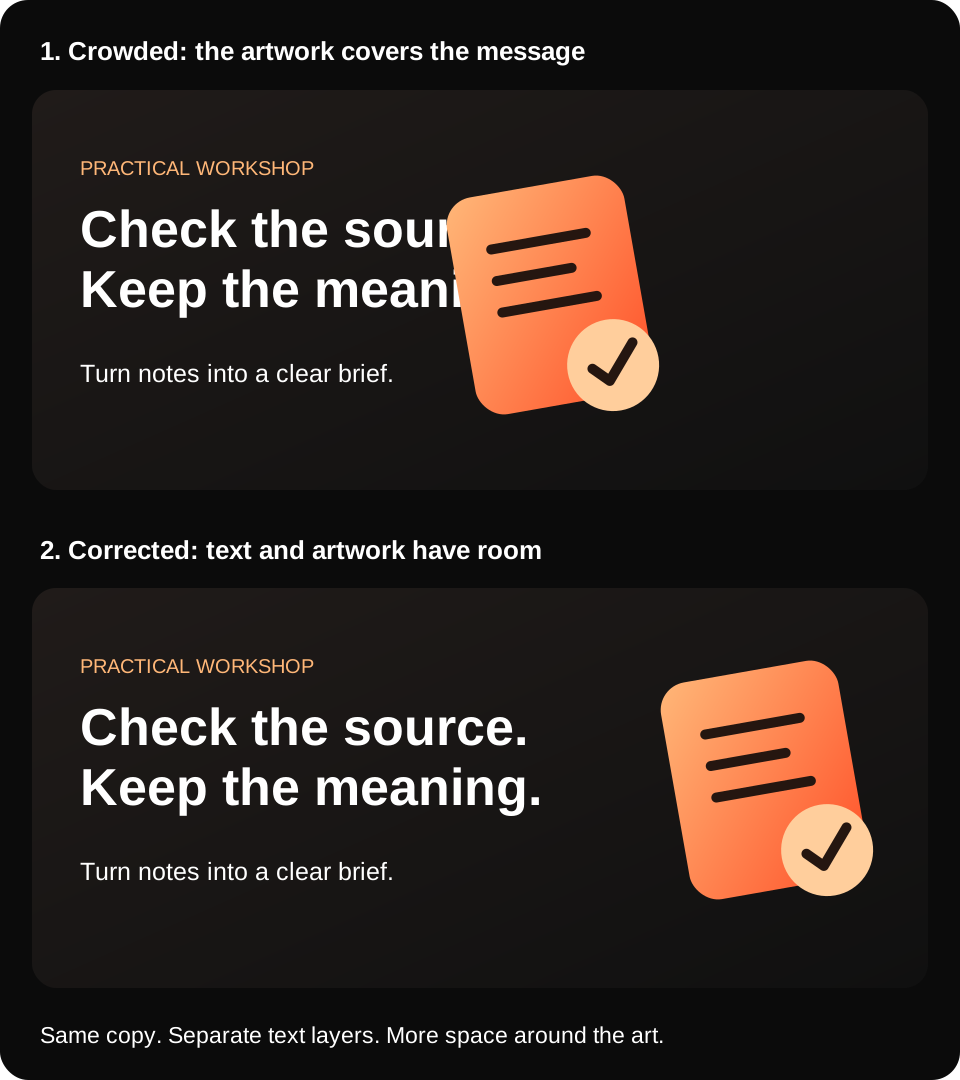
In the upper version, the artwork competes with the second half of the headline. More contrast alone will not fix the overlap. In the lower version, moving the document to the right gives the words their own space without changing the message.
Your result does not need to match this illustration. It should satisfy the same checks: the complete headline fits, the symbol stays visible and the subtitle remains editable. The diagram simplifies the artwork so the composition problem is easy to see.
Make a targeted correction
Suppose your generated image puts a document in the center. Try this revision before generating a completely different idea:
Keep the document-and-check concept and the charcoal-orange palette.
Move the complete symbol into the right third. Leave the left half plain
and dark. Do not add words or additional objects.
If the revision changes a detail you wanted to keep, compare it with the earlier version. You may be able to position the earlier asset manually instead. Choose the least disruptive correction that solves the layout problem.
| Problem | Correct the part that failed |
|---|---|
| Headline wraps into too many lines | Adjust the text width or deliberate line breaks before reducing the font. |
| Small subtitle disappears in the preview | Increase its size or contrast; inspect the actual export again. |
| Artwork touches the edge | Reduce or reposition it; keep its complete silhouette within the frame. |
| Generator adds invented letters | Remove the lettering or select another candidate before adding real text. |
| Exact logo looks different | Use the approved logo asset as a separate layer. |
Check the export and the editable file
Export a preview at 1200 × 628 and inspect it at half size. Read the headline without zooming, then check the subtitle and symbol edges. A source file can look fine at a large zoom while its actual placement makes the supporting text too small.
Change the subtitle once as a handoff test. If you must regenerate the picture to change it, the text belongs on a separate layer. Name the layers so someone else can find the headline and illustration, and keep the original image candidate with the source file.
For a square version, create a new layout and move the illustration below or beside the copy. Do not stretch the wide card into a square. If the card contains information readers need, also provide that information as page text; the image should not be the only place an event detail appears.
Choose the tool by the job
Use an image generator for a new visual direction, a layout editor for type and spacing, and a photo editor for changes to an existing image. If the supplied assets already communicate the message, begin directly in the layout editor. The AI tools for designers comparison explains the product choices; the landing-page brief workflow helps when the message itself is still unclear.
Questions about AI for graphic design
Can AI generate a finished brand asset?
It can create a candidate visual, but brand, type, rights, accessibility and export checks still need a human design process.
What should stay outside the generated image?
Keep exact copy, logos, legal claims and production typography in the design file where you can inspect and control them.
What is a useful first test?
Generate two directions from the same brief, place them at their real size and ask which one keeps the message area clear before making a larger set.